
Get started with Proton Duo
When you introduce a friend or loved one to Proton Duo, you both save on unlimited privacy. Duo includes the premium version of Proton Mail, Calendar, VPN, Drive, Pass, and Wallet for two people, plus 2 TB of storage to share.
You get to decide what to share with each other. Both accounts have separate sign-in details, and neither user can see the other’s data.
- Subscribe to Proton Duo
- Set up your Proton Duo plan
- Manage your Proton Duo subscription
- Join an existing Proton Duo plan
- Frequently asked questions (FAQ)
Subscribe to Proton Duo
These steps are for the plan administrator (the person who will manage plan billing and membership). Once the admin subscribes, they can invite another user.
- Go to proton.me/family.
- Select Monthly or Yearly, then click Get Duo.

3. Sign in or create an account
If you’re new to Proton, enter a username (this will also be your Proton Mail email address) and password.
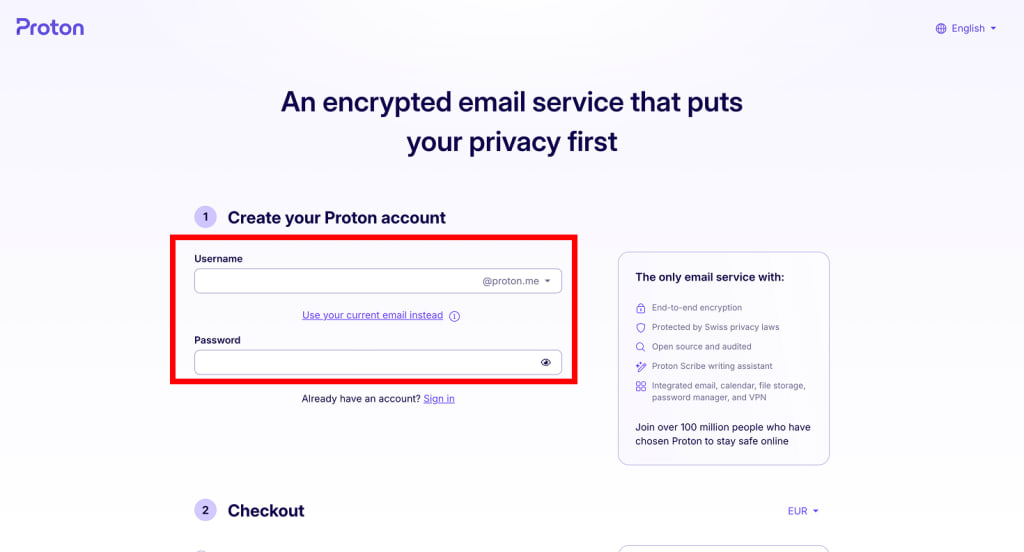
If you already have an account, click Sign in and enter your username and password.


4. Checkout
Select a payment method, enter your payment details, and select a billing country.
To confirm your purchase, click Start using Proton Mail now.

Alternatively, you can subscribe in the Proton web app. Just sign in at account.proton.me, select any service, and follow one of these paths:
- Click Upgrade in the top navigation bar. Select Proton Duo from the plans table.
- Open your account settings. Select Compare all plans from the home page (next to Your plan).
That’s it — you’re subscribed to Proton Duo. Now you’re ready to set up your Proton family group.
Set up your Proton Duo plan
Create Proton family group
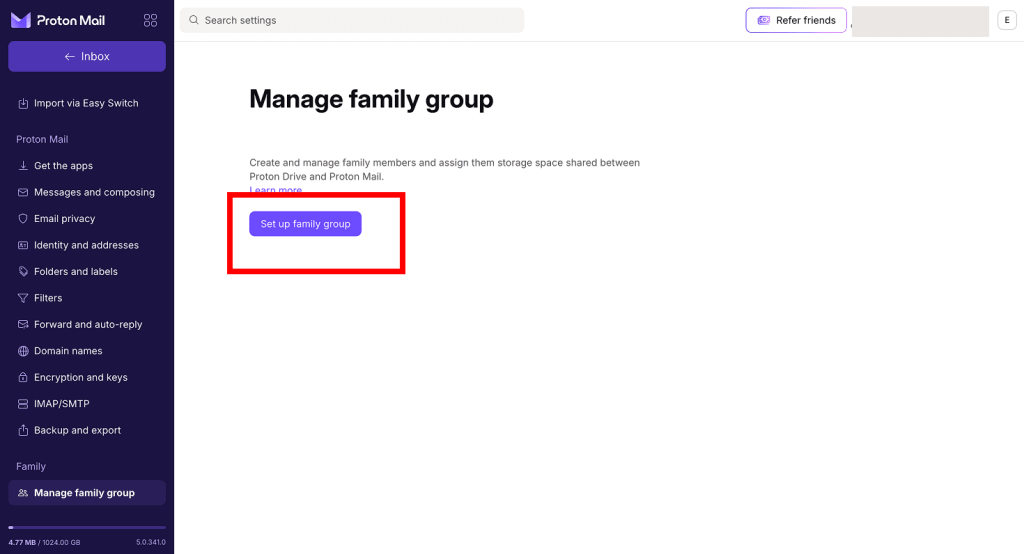
1. Open your account settings. In the sidebar, scroll to Family and select Manage family group and click Set up family group.
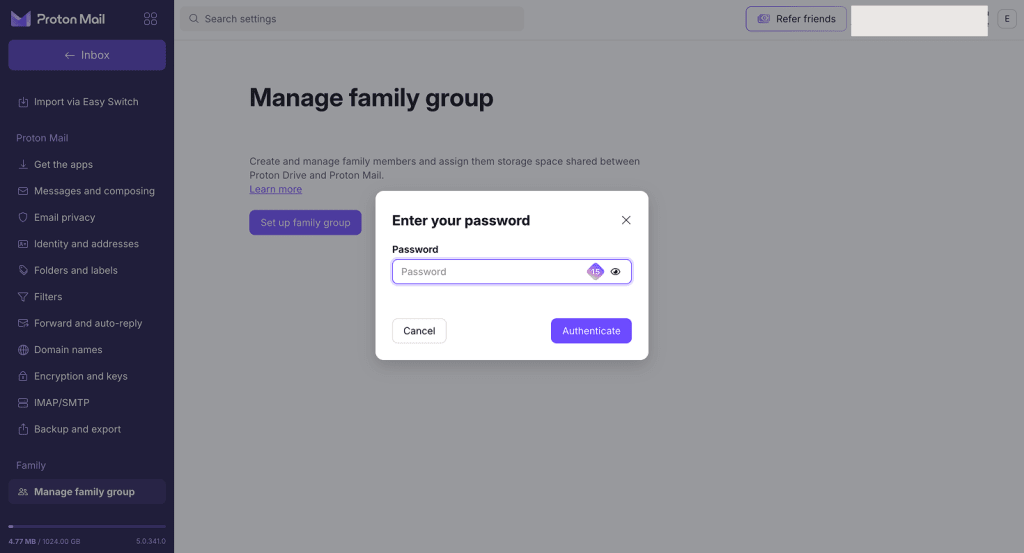
2. Enter your password, and click Authenticate.
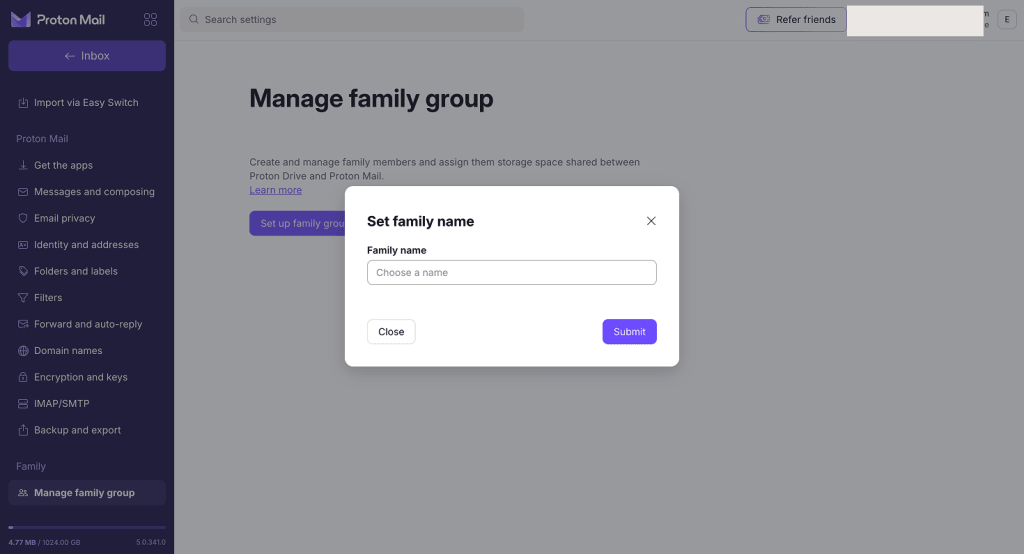
3. Enter a name for your family group, and click Submit to continue.
4. You can now allocate storage space for your own (administrator) account. Adjust the slider, or enter a number into the Account storage box.
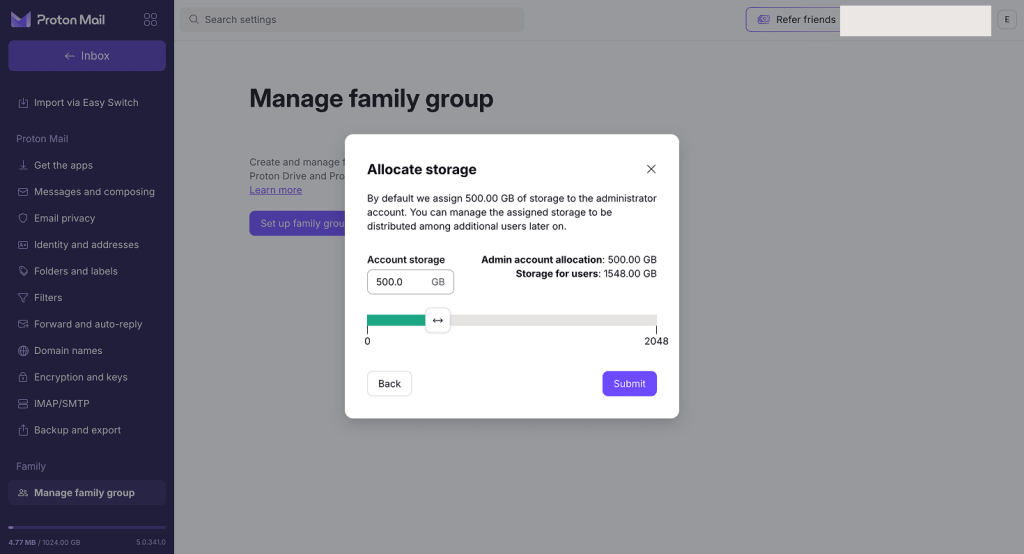
Proton Duo comes with 2 TB of storage to share between two users. You can always change your storage allocation later. When you’ve set your storage, click Submit.
That’s it — you’ve created your family group. Now you’re ready to invite your partner.
Invite a user
1. Open your account settings. Select Users and addresses from the sidebar then click Invite user.
If you just created your family group, you’ll already be on this page.
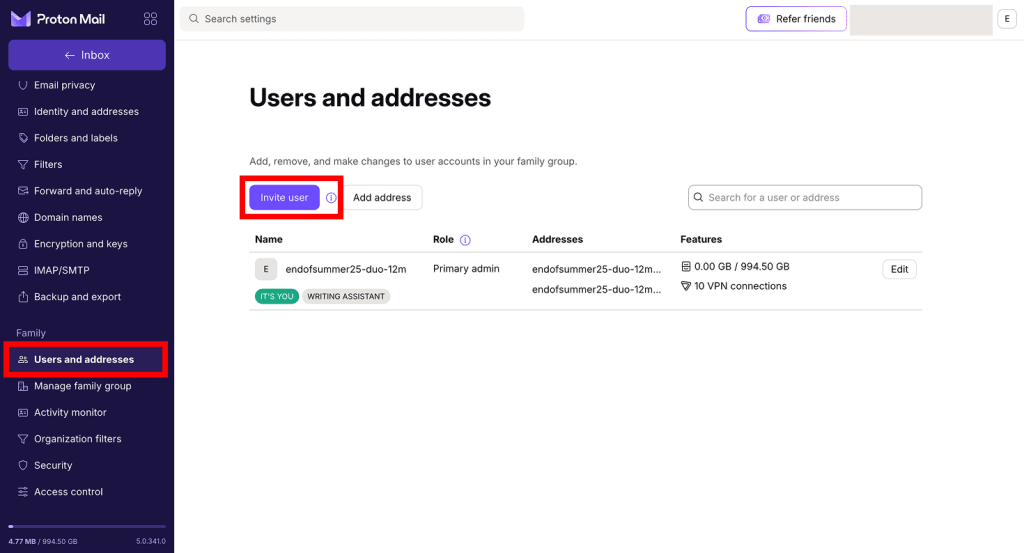
2. Enter your user’s email address (if they don’t have a Proton Mail address yet, they’ll need to create one), decide how much storage to allocate them, then click Invite.
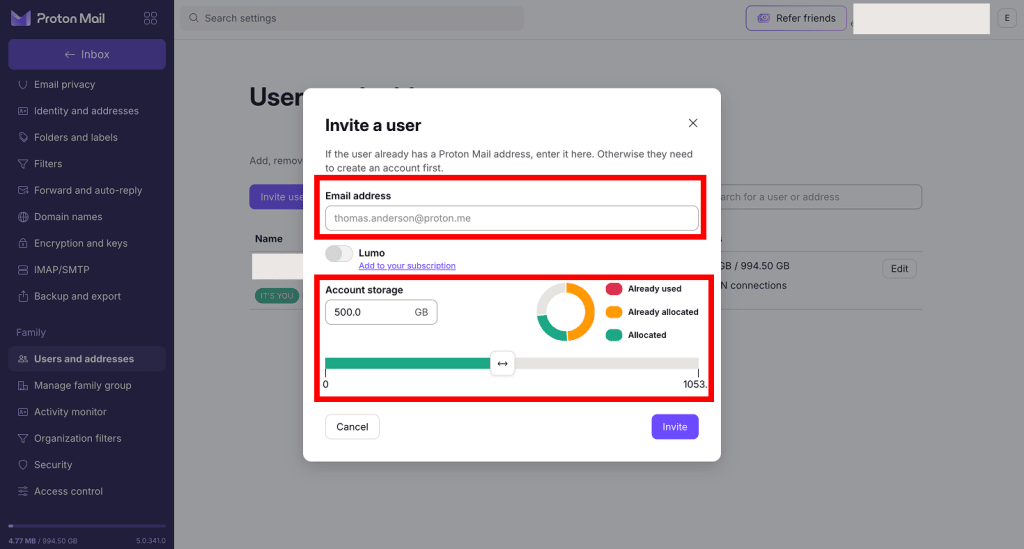
If you allocated all of your plan storage to yourself, you’ll need to remove some storage from your account to make room for the other user.
3. Enter your password to confirm.
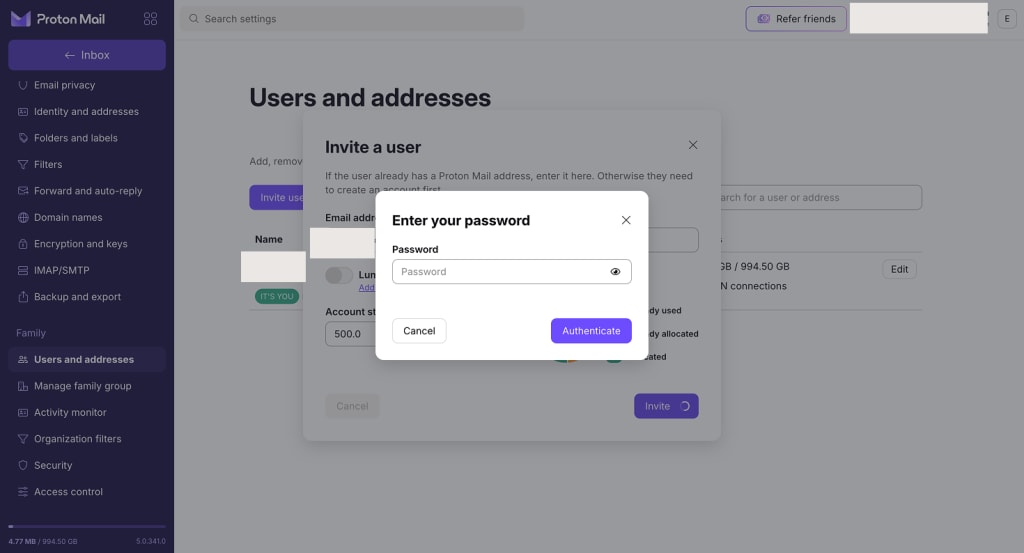
All done. Your user will receive an email invitation to their Proton Mail address.
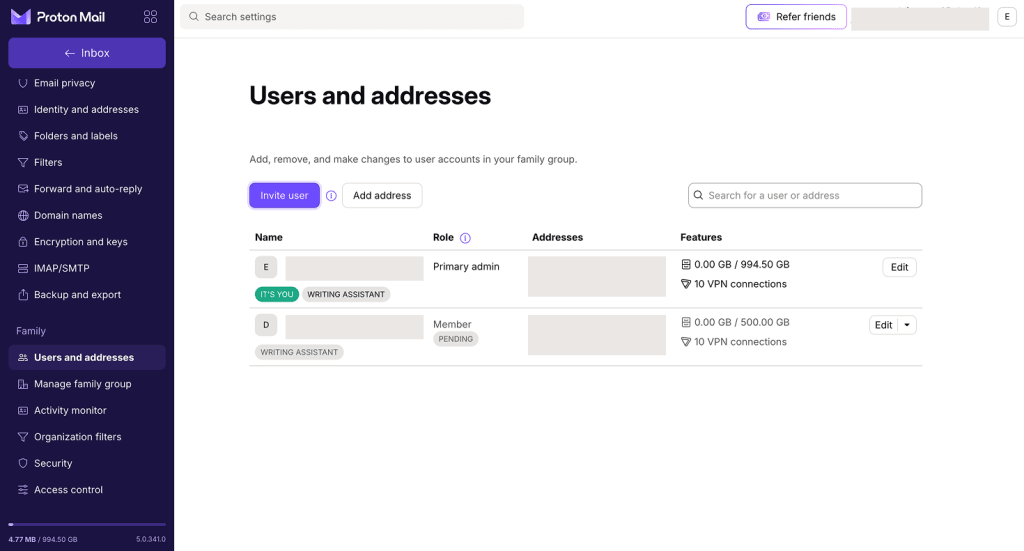
Proton Duo has a maximum of two members. To add more users, upgrade to Proton Family.
Manage your Proton Duo subscription
Remove users
You can remove a user from your Proton Duo plan at any time. When you remove a user, they keep their premium features and storage for 30 days.
1. Go to Users and addresses (or click Settings → All settings → Family → Users and addresses), click the down arrow next to the Edit button, and select Remove.
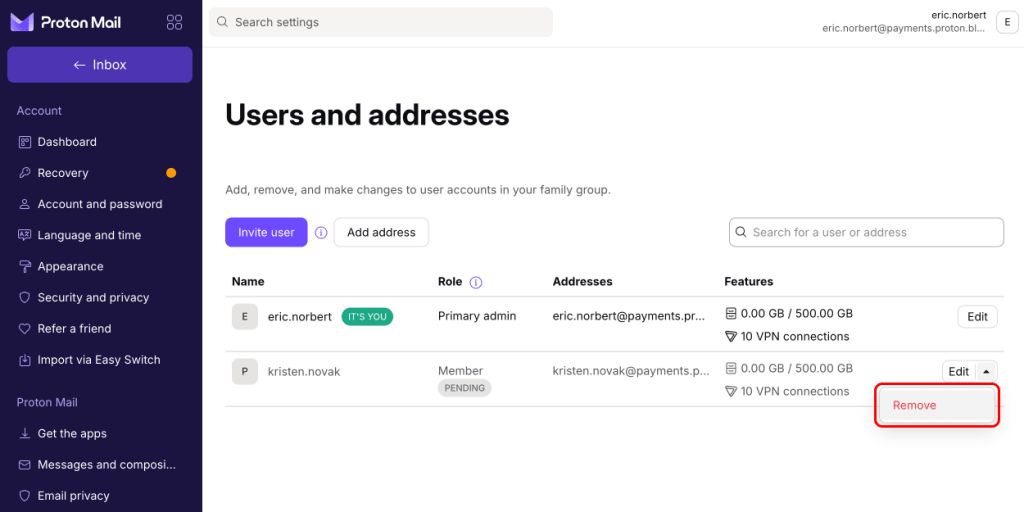
2. Click the Remove button to confirm your choice. If you remove a user, their plan will be changed to a 30-day trial of Proton Unlimited(new window).

That’s it — you successfully removed someone from your plan. They’ll receive an email telling them that their plan has changed.
Change a user’s storage allowance
1. Go to Users and addresses (or click Settings → All settings → Family → Users and addresses). Find the family member whose storage space you’d like to change and click Edit.

2. Reallocate the storage space for this family member by filling in the Account storage box or moving the slider. Click Save.

Create and assign addresses
Proton Duo includes up to 30 additional addresses. Only the administrator can create additional addresses and assign them to users.
To create and assign an address:
- Sign in to your organization and open account settings.
- Select Users and addresses from the sidebar, then select Add address.
- To create your address, enter a username, select a domain, then decide which user account the address should be assigned to.
Join an existing Duo plan
Before you get started
- Create a free Proton Account if you don’t have one. You need a Proton Mail address to receive your invitation.
- If you already have a Proton Account with a custom domain, you’ll need to remove it from your account before you can join.
1. Give your Proton Mail address to the Proton Duo account owner (administrator) so they can send you an invitation.
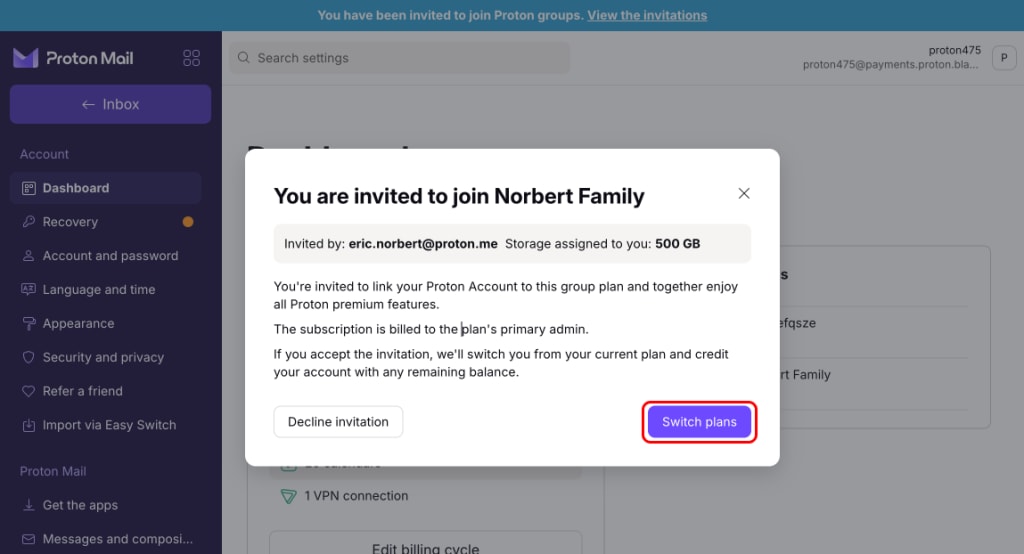
2. You’ll get an email inviting you to join their family group. You’ll also see a banner in your Proton Mail web app. Click View the invitation on the banner to see the details.

3. Click Switch plans to join your family group in Proton Duo.
Proton Duo FAQs
How can I get Proton Duo?
You must first create a Proton account. You can then switch to the Proton Duo plan in your account dashboard. See how to subscribe to Proton Duo above.
What’s included in the Proton Duo plan?
Proton Duo provides everything that’s in Proton Unlimited for two users, along with 2 TB of storage space that you can freely allocate however you wish. Each of you gets their own account that includes access to all premium features in Proton Mail, Proton Drive, Proton Calendar, Proton VPN, and Proton Pass.
Learn more about what you get with Proton Duo
Who can I invite to my Proton Duo plan?
With Proton Duo, you can invite another user to your plan. All they need to join is a Proton Account. If they don’t already have a Proton Account, they can easily create one for free.
Do I need to have a custom email domain to get Proton Duo?
No, you don’t. The Proton Duo plan supports up to three custom email domains, but you don’t need a custom domain to invite family members.
How does storage space work?
Proton Duo gives you 2 TB of storage space to share with your partner. When you add someone else to your plan, as the administrator of the plan, you’ll be prompted to allocate storage space. If your needs change, you can then adjust how much storage each of you has at any time.
Can the other member of my Proton Duo plan see my emails, files, events, or passwords?
Each member of a Proton Duo plan has their own separate account. Emails, files, and events remain encrypted with their private key. So you can’t see the data from the other person you invited, unless they choose to share it with you (by sharing, for example, their calendar or Proton Drive files).
Can I leave a Proton Duo plan?
If you were invited to the Proton Duo plan, you can leave at any time. Your account will be downgraded to a 30-day trial of our Proton Unlimited(new window) plan. You’ll keep all your files and folders but will lose access to the features and storage space of Proton Duo. If you’re the administrator of a Duo plan, you can cancel your subscription. Note that if you added someone else to your plan, they will be removed from your family group when your plan expires.
What happens to my paid subscription when I join a Proton Duo plan?
When you accept an invitation to join a Proton Duo plan, we credit you the remaining months of your current subscription.
Can I change the primary administrator of my Proton Duo plan?
No, you can’t change the primary administrator of your Proton Duo plan.